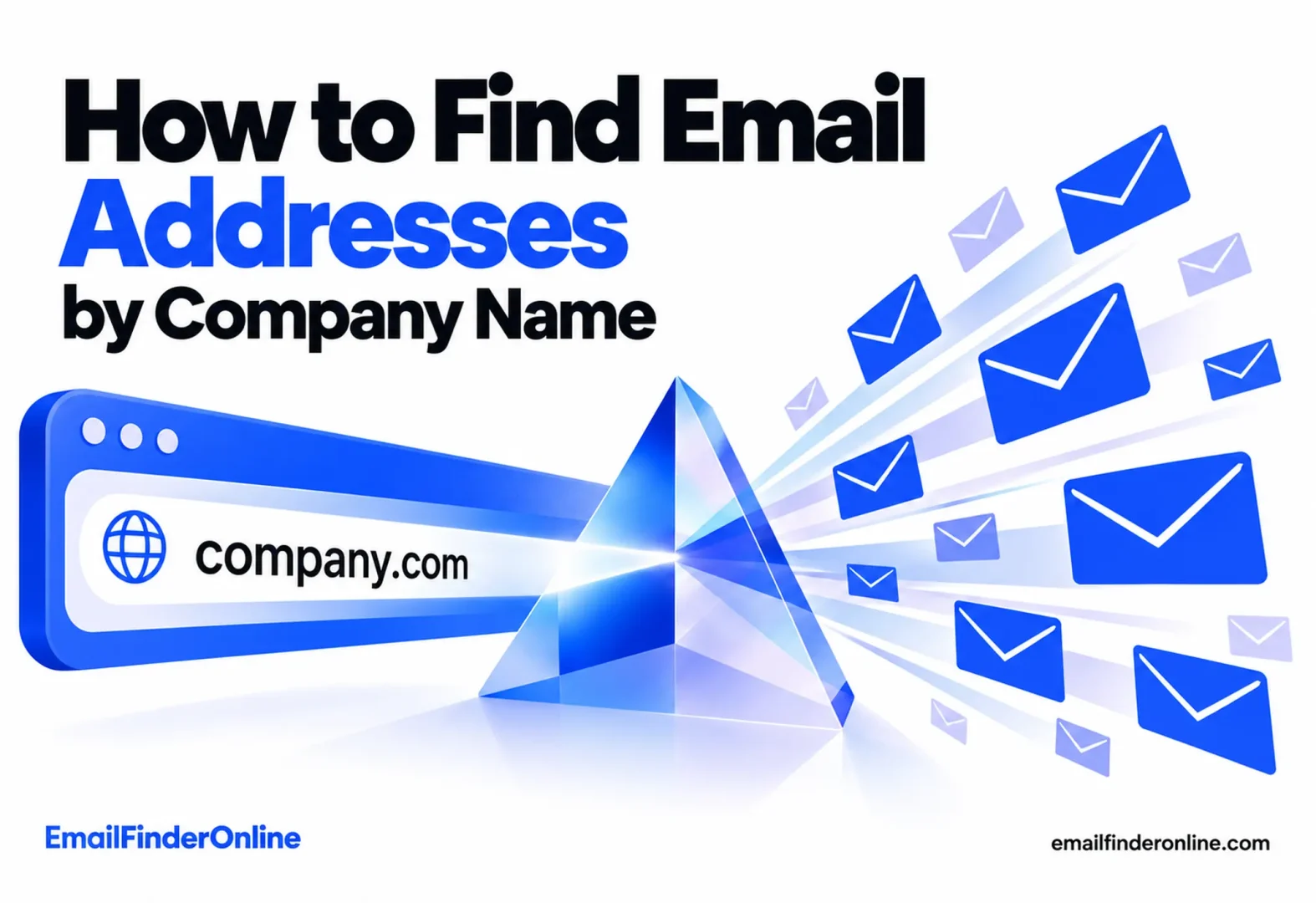
How to Find Email Addresses by Company Name
You have a company name and a reason to reach out, but no contact. Maybe it is a partner you want to pitch, a vendor you need to reach, or a whole account you plan to sell into. This guide shows you how to find emails by company, step by step, starting with free checks and moving to dedicated tools when you need more than a handful of addresses. By the end you will know how to turn a company name into a domain, map the people who work there, and confirm each address before you hit send.
What you need before you start
Finding company emails gets much easier when you collect three things first:
- The company’s real email domain. This is the part after the @ sign. It is often the website domain, but not always.
- The role or department you want. “Someone in marketing” is easier to search than “anyone at the company.”
- A way to verify addresses. A found address is not the same as a working address, so plan your verification step from the start.
Step 1: Turn the company name into a domain
Almost every method below works better with a domain than with a bare company name, because the domain is what mail servers and search tools actually match on.
- Search the company name and open its official website. Check that you have the right company, especially for common names.
- Note the root domain (for example,
acme.com, notshop.acme.com). - Watch for variations. Some companies use a different domain for email than for their website, such as a regional domain or an older brand name. If an address you find later uses a different domain, trust the email domain.
Step 2: Check the company website
The company’s own site is the most authoritative public source, and it costs nothing to check. Look in these places:
- Contact page. Often a general inbox like info@ or hello@, but it confirms the email domain.
- Team, About or Leadership page. Some companies list direct addresses in staff bios.
- Footer and legal pages. Imprint, privacy and terms pages often list a contact or data protection address.
- Press or newsroom page. Media contacts are usually named, with a direct address.
- Blog author bios and job posts. Writers and hiring managers sometimes publish their own address.
Even when you only find a generic inbox, write it down. It proves the domain is in use and can help you spot the company’s email format.
Step 3: Use Google search operators
Search engines index pages the company’s navigation no longer links to, like old PDFs and press releases. Try these queries, replacing acme.com with your target domain:
| Query | What it finds |
|---|---|
site:acme.com "@acme.com" |
Pages on the company site that mention an address |
"@acme.com" -site:acme.com |
Addresses published elsewhere, such as event speaker pages or press coverage |
"@acme.com" marketing |
Addresses near a role or department keyword |
This works well for small volumes. It slows down quickly when you need dozens of contacts.
Step 4: Identify the right people
Before you guess or search for addresses, decide who you actually want to reach.
- LinkedIn company page. The People tab lists employees with their roles. Note the full names and titles of two or three likely contacts.
- Team page and press releases. These confirm who holds which role right now.
- Event and podcast pages. Speakers are usually listed with their title and company.
Write down each person’s first name, last name and role. With a name and a domain, you can either work out the address yourself or hand both to a tool.
Step 5: Work out the company’s email format
Most companies use one consistent format for every employee. Once you know it, you can apply it to any name. Common formats include:
firstname@domain.comfirstname.lastname@domain.comfirstinitiallastname@domain.com(for example, jsmith@)firstname_lastname@domain.com
If you found even one real employee address in Steps 2 or 3, you probably know the format already. If not, build two or three candidates for your contact and move straight to verification. Never send outreach to an unverified guess.
Step 6: Use a domain search tool to find emails by company
When you need more than a few contacts, a domain search tool saves hours. You enter a company name or domain and the tool returns the addresses it can find or verify for that company, often with names and roles. Here is how a few vendors describe this feature on their own pages, with each fact linked to its source.
Prices are the USD prices these vendors show to US visitors. Outside the US some pages show other currencies (Hunter, for example, shows EUR), so the amount you see may differ.
Hunter Domain Search. Hunter says its Domain Search finds email addresses from any company name or website and returns all the addresses linked to a company domain, with confidence scores, department filters and sources. On Hunter’s pricing page, one credit covers one email found in Domain Search, and a Bulk Domain Search uses one credit for up to 10 emails. If no emails are found, no credits are used. The Free plan includes 50 credits per month.
Snov.io Domain Search. According to Snov.io’s pricing page, its Domain Search lists the people at a company, with their roles and contact details, starting from only the company name or domain. Its free Trial plan includes 50 credits that renew monthly, though bulk search and export are not available on Trial.
Anymail Finder company search. On Anymail Finder’s pricing page, its “Find Company Emails” search takes a domain or company name and charges 1 credit for up to 20 emails, only when verified emails are found. Repeating the same search within 30 days costs nothing extra.
Apollo company search. On its email finder page, Apollo says you can enter a company name and filter by job title, department or seniority to see contacts with their email address. The same page mentions free CSV export of up to 25 contacts at a time.
A practical way to use these tools:
- Start with the domain, not just the company name, so the tool matches the right organization.
- Filter by department or seniority to keep the list focused on people you actually need.
- Export or copy the results with their source or confidence information.
- Verify anything the tool does not mark as verified.
If you want a side by side look at more options, compare several email finder tools before you commit to one.
Step 7: Verify every address before you send
Verification checks whether a mailbox exists and accepts mail, without sending a real message. It protects your sender reputation, because a high bounce rate can push your future emails into spam.
A good verification step checks:
- Syntax. The address is correctly formed.
- Domain and MX records. The domain exists and is set up to receive email.
- Mailbox response. The mail server confirms the specific mailbox, where it allows that.
- Catch-all status. Some servers accept mail for any address, which makes a single address hard to confirm. Treat these as risky unless your tool verifies them.
Many finder tools include verification. If yours does not, run your list through a separate verifier before any campaign.
Common mistakes to avoid
- Searching by company name only. Names are ambiguous. A domain points to exactly one organization.
- Trusting old addresses. People change jobs. An address from a 2019 PDF may no longer work.
- Sending to guesses. A pattern guess is a hypothesis, not an address. Verify first.
- Collecting everyone. Ten relevant contacts beat two hundred random ones, and a smaller list is easier to personalize.
- Ignoring the rules. Business outreach is regulated in many places. Identify yourself, give a clear way to opt out, and honor opt-outs quickly. Check the rules that apply to the countries you email.
Which method should you use?
| Situation | Best starting point |
|---|---|
| One contact at one company | Website, Google operators, then a format guess plus verification |
| A few roles at one company | LinkedIn to identify people, then a domain search tool |
| Many companies at once | A bulk domain search tool, then verification |
| You only need a general inbox | The contact page or footer |
FAQ
Can I find all email addresses at a company?
You can find the addresses that are publicly listed or that a tool can locate and verify. No method gives you a complete staff directory. A domain search tool is usually the fastest way to see what is available for a company.
Is it better to search by company name or domain?
Domain. A company name can match several organizations, while a domain points to one. Find the domain on the official website first, then search with it.
How do I find someone’s email if I only know the company?
Identify the person first, using the company’s team page or LinkedIn, then combine their name with the company domain. You can apply the company’s email format yourself or use an email finder, and then verify the result.
Are free methods good enough?
For one or two contacts, often yes. The website, Google operators and pattern guessing cost nothing. They get slow when you need many contacts, which is where domain search tools help.
Is it legal to email business addresses I find?
It depends on where you and the recipient are, and on how you use the address. Many regions allow relevant business outreach with clear identification and an easy opt-out, while others are stricter. Check the rules for each country you contact.
Do I still need to verify emails from a tool?
If the tool marks a result as verified, you can usually send to it. Anything marked risky, unknown or catch-all deserves a second check before you include it in a campaign.
Wrapping up
To find emails by company, start with the domain, check the company’s own website and Google, identify the right people, and then either apply the email format or use a domain search tool. Whichever route you take, verify every address before you send. That last step is what keeps your outreach out of spam and your domain reputation intact. If you’re pitching websites for links, see how to find email addresses for link building outreach. You can also see Email Finder Online pricing.