Email Management: How to Organize Your Inbox and Keep It Clear
 By Nora Ellison
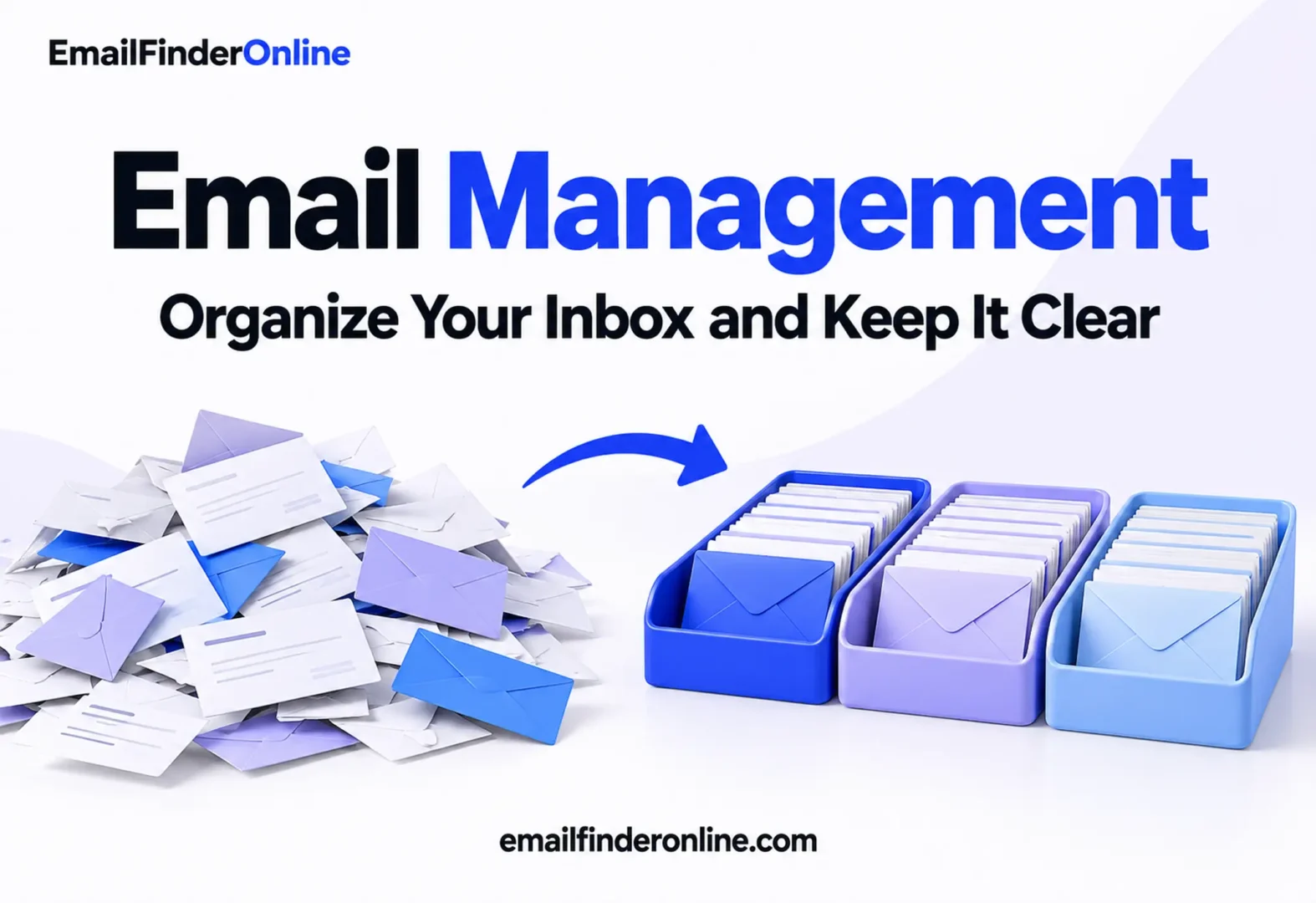
Email management is the set of habits and settings that decide where each message goes, when you deal with it and what happens to it afterwards. In practice it comes down to five pieces: a small set of labels or folders, filters or rules that sort mail before you see it, a fixed time to process the inbox, tools such as scheduled sending and snooze that move work to the right moment, and a weekly cleanup. This guide walks through each piece in Gmail and Outlook, with the menu paths taken from each provider’s own help pages as of October 26, 2026.
Why email management needs a system, not willpower
An inbox fills from the outside. Newsletters, notifications, replies to threads you were copied on and genuine requests all land in the same list, and each one asks for a small decision. Without a system you make those decisions one message at a time, many times a day, and the important requests get buried under the noise.
A system moves the bulk of those decisions to setup time. You decide once that receipts go to a “Receipts” label, that a client’s mail gets a color and that newsletters skip the inbox. After that, the inbox only shows what needs your attention today.
The five parts of an email management system
| Part | What it does | Gmail feature | Outlook feature |
|---|---|---|---|
| Structure | Gives every message a home | Labels (nested if you like) | Folders |
| Automation | Sorts mail as it arrives | Filters | Inbox rules |
| Triage | Decides what needs you now | Inbox tabs, Priority inbox | Focused Inbox |
| Timing | Moves messages to a better moment | Schedule send, Snooze | Depends on your Outlook version |
| Upkeep | Keeps the setup accurate | Edit labels and filters | Edit and reorder rules |
You don’t need every row on day one. Start with structure and automation, then add the rest once the first two feel natural.
Step 1: Build a small label or folder structure
Keep the structure shallow. A common pattern uses four groups:
- Action: messages that need a reply or a task from you.
- Waiting: threads where you are waiting on someone else.
- Reference: receipts, contracts, account notices and anything you may need to find again.
- Projects or clients: one label per active project, archived when the project ends.
Gmail labels
Gmail organizes mail with labels. Google’s help page on creating and managing Gmail labels says labels are different from folders, only you can see them, and deleting an email removes it from every label as well as the inbox. You can create up to 5,000 labels, though a dozen is plenty for a typical inbox.
To create one in Gmail on the web:
- Go to the left panel.
- Beside the “Labels” heading, click Create new label.
- Type a name.
- To place it inside another label, tick “Nest label under” and pick the parent.
- Click Create.
You can also give labels colors, which makes the client or project labels easy to spot. Google allows up to 100 custom colors.
Outlook folders
Outlook uses folders, so a message lives in one place at a time. The same four groups work well as top-level folders, with project folders nested underneath.
Step 2: Automate sorting with filters and rules
Automation is where email management starts saving real time. Each filter or rule handles a predictable type of mail so it never interrupts you.
Good candidates for automation:
- Newsletters and promotional mail you read in batches.
- Notifications from tools such as project trackers, calendars and billing systems.
- Receipts and invoices.
- Mail from one important client or manager that should stand out.
Create email filters in Gmail
Google’s page on Gmail filters describes two ways to start.
From the search bar:
- Click Show search options inside the Gmail search bar.
- Enter the criteria, such as a sender address or words in the subject.
- Optionally click Search to preview which emails match.
- Click Create filter.
- Choose the actions, for example apply a label, skip the inbox (archive) or star it.
- Click Create filter again.
From an existing message: select its checkbox, open the More menu and pick Filter messages like these, adjust the criteria and create the filter.
Two details from that page matter. A filter that forwards mail only affects new messages, and a reply to a filtered thread is only filtered if it also matches the criteria. You can edit, delete, export or import filters under Settings, See all settings, Filters and Blocked Addresses; an export gives you an .xml file you can keep as a backup.
Create Outlook rules
Microsoft’s guide to inbox rules in Outlook has separate tabs for new Outlook, classic Outlook and Outlook on the web. The quick path on the new Outlook tab:
- Right-click a message from the sender you want to sort.
- Hover over Rules and select Create rule.
- Pick the destination folder and select OK.
For anything more detailed, select More options in that dialog. Microsoft notes that each rule needs a name, a condition and an action, and can also carry exceptions. Rules apply in the order they appear in the list, which you can change under Settings, Mail, Rules with the up and down arrows. The same page notes that new Outlook does not run rules for third-party accounts such as Gmail, Yahoo or iCloud, so set those up with the provider itself.
Rule writing tips
- Start narrow. Match a specific sender or domain before you try keyword rules, which catch more than you expect.
- Prefer labels over deletion. Archiving is reversible. Auto-delete is not.
- Name rules clearly. “Billing notices to Reference” tells you what a rule does months later.
- Review new rules after a week. Check the destination label or folder for anything that should have stayed in the inbox.
Step 3: Let the inbox triage for you
Both providers can split incoming mail before you open it.
In Gmail, Google’s Workspace tips page on optimizing the Gmail inbox explains that the default inbox can show category tabs. To set them, click Settings, and in the “Quick settings” menu under “Inbox type” pick Default, then Customize, select the categories you want and click Save. If an email lands in the wrong tab, drag it to the right one so Gmail learns. Starring a message in another tab also shows it in Primary, which helps with follow-ups. The same page describes Priority inbox, which splits mail into three sections: important and unread, starred, and everything else.
In new Outlook, Microsoft’s Focused Inbox page says you can turn the feature on under View, View Settings, then Mail, Message List, by ticking “Sort messages into Focused and Other” and saving. To teach it, right-click a message and choose Move, then Always move to Other inbox (or to Focused) so future mail from that sender lands in the right tab.
Step 4: Process email in blocks
Settings handle sorting. A routine handles decisions. Pick two or three fixed times a day to work through the inbox, and close the mail tab in between. When you process, give every message one of four outcomes:
- Do it if it takes about two minutes or less.
- Defer it with snooze or a task if it needs more time.
- Delegate it by forwarding with a clear request and moving the thread to “Waiting.”
- Drop it by archiving or deleting.
Snooze what you can’t handle yet
Gmail’s snooze feature removes a message from the inbox until the time you choose. Point to the email, click Snooze on the right and pick a day and time. Snoozed mail sits under Snoozed in the left panel, and the search operator in:snoozed finds it too.
Step 5: Use scheduled sending to control timing
Scheduled sending lets you write when it suits you and deliver when it suits the reader. It also stops late-night replies from setting the expectation that you answer at night.
In Gmail, per Google’s page on schedule send:
- Click Compose and write the message.
- Next to Send, click the Down arrow.
- Click Schedule send and pick a time.
Gmail holds up to 100 scheduled emails and sends them using the time zone you scheduled them in, so check the time before you travel. To change one, open Scheduled in the left panel, select the email and click Cancel send; the message turns back into a draft you can edit and reschedule.
Step 6: Work toward inbox zero (and keep it realistic)
Inbox zero means the inbox holds only what still needs a decision, not that it is literally empty all day. Once labels, filters and a processing routine are in place, the inbox becomes a short to-do list rather than an archive.
To get there from a large backlog:
- Archive in bulk. Search for mail older than a set date, select all and archive it. Nothing is lost; it moves out of view.
- Unsubscribe as you go. Each newsletter you stop is one less message every week.
- Create filters from the backlog. When you see the same sender ten times, build a filter instead of archiving by hand.
- Process what is left with the four outcomes above.
Step 7: Keep the system working
A system drifts. Projects end, new tools send notifications and clients change domains. Set a short weekly review:
- Archive project labels or folders that are no longer active.
- Check filter or rule destinations for misplaced mail.
- Empty the “Waiting” group by following up or closing threads.
- Clean up contacts you no longer need, and confirm addresses before you reuse them. If an address bounces, it may be outdated, so run it through a round of email address verification before you write again.
Email management for outreach and sales inboxes
Shared and outreach inboxes need extra structure because replies, bounces and auto-responses arrive together.
- Label replies by stage, for example “Interested,” “Not now” and “Wrong person.”
- Route bounce notices to their own label so you can clean the list. Our guide to preventing email bounces covers the causes.
- Track follow-ups with snooze or scheduled sends rather than memory. A planned sequence is easier to keep up, as described in this walkthrough of cold email outreach.
- When a reply says “talk to my colleague,” file the new contact under the account and look up the right person with a method for finding company contact information.
Common email management mistakes
- Too many labels or folders. If you hesitate about where a message goes, merge categories.
- Filters that hide important mail. Broad keyword filters can archive a client request. Keep rules specific and review them.
- Checking all day. Constant checking breaks focus. Use blocks and close the tab.
- Using the inbox as a task list for weeks. Move long tasks to a task manager and archive the message.
- No backup of rules. Export Gmail filters before major changes.
Email management checklist
- ☐ Four to eight labels or folders: Action, Waiting, Reference and active projects
- ☐ Filters or rules for newsletters, notifications and receipts
- ☐ Inbox tabs or Focused Inbox turned on and trained
- ☐ Two or three fixed processing blocks in the calendar
- ☐ Snooze used for anything that needs a later decision
- ☐ Schedule send used for replies outside the reader’s working hours
- ☐ Weekly review of labels, rules and the Waiting group
Weighing tools for building and checking contact lists? The pricing page lists the plans.
FAQ
What is the simplest email management method to start with?
Create three labels or folders (Action, Waiting, Reference), add one filter for newsletters and set two daily blocks for processing mail. Add more only when you notice a repeated sorting task.
Are Gmail labels the same as folders?
No. Google’s help page states that labels are different from folders, and deleting an email removes it from every label and the inbox at once. In Outlook, a message sits in one folder at a time.
Do Outlook rules work for Gmail accounts added to Outlook?
Not in new Outlook. Microsoft says new Outlook does not support rules for third-party accounts such as Gmail, Yahoo and iCloud, so create filters in those services directly.
How many emails can I schedule in Gmail?
Google lists a limit of 100 scheduled emails. They are sent based on the time zone in which you scheduled them, and a cancelled scheduled email becomes a draft.
Is inbox zero worth it?
As a daily target it can be, if it means every message has been decided on. It doesn’t have to mean an empty inbox at every moment. The goal is that nothing important waits unseen.
How often should I review my filters and rules?
A short weekly check is usually enough, plus a review whenever a project ends or a new tool starts sending notifications.
Start with one filter today
Email management improves in small steps. Pick the sender that fills your inbox week after week, build a filter or rule for it, and set your first processing block. Once that works, add the next label, then a routine for snooze and scheduled sending. Within a couple of weeks, the inbox should show what needs you and very little else.