Why Email Addresses Bounce and How to Prevent It
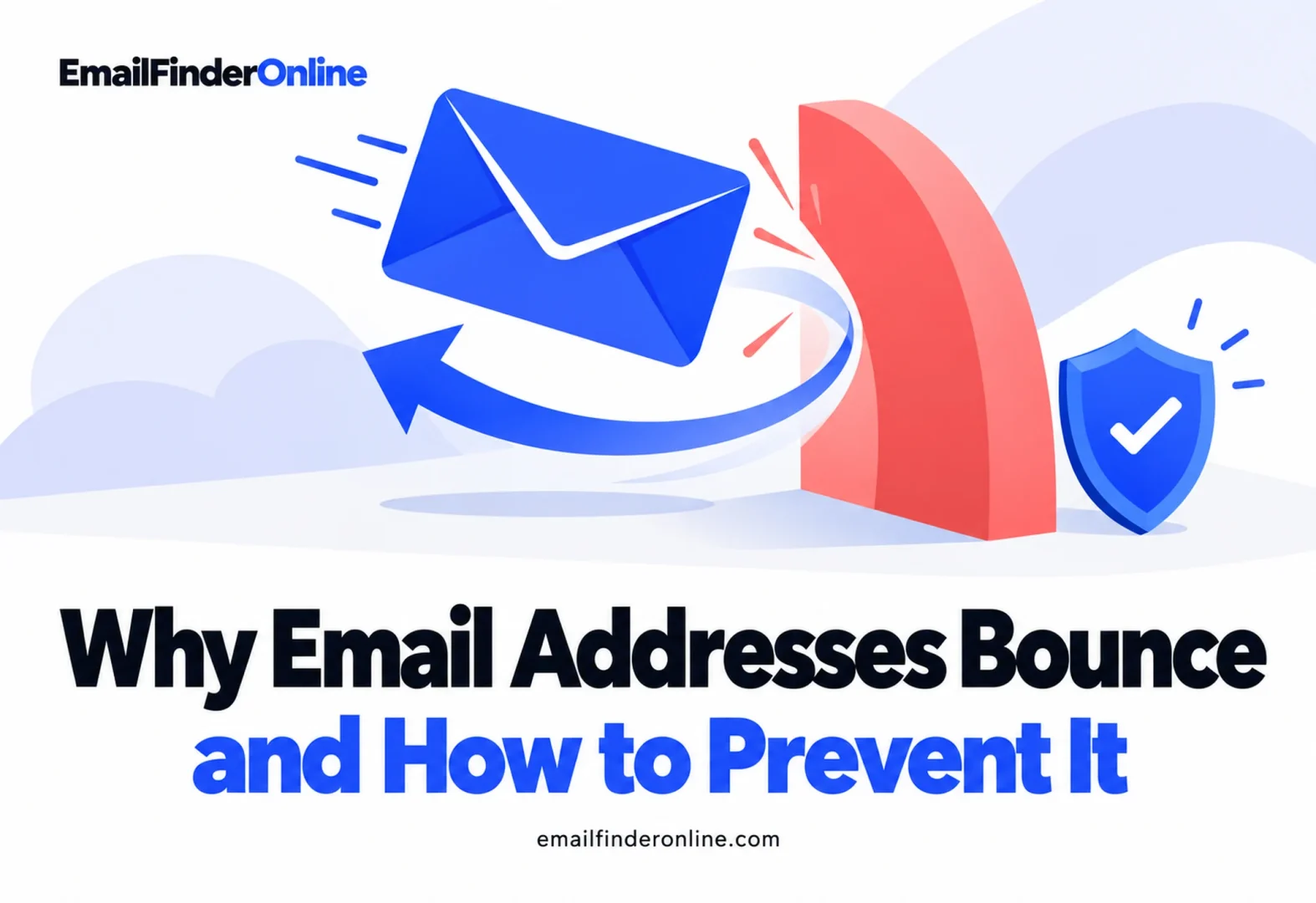
A bounce is a message that comes back undelivered, usually with a short error code from the receiving server. A few bounces are normal. A steady stream of them tells mailbox providers you don’t know who you’re emailing, and that can push your other messages toward spam. Good email bounce prevention starts with understanding why mail bounces, then fixing the causes you control.
This page explains the main bounce types, what the codes from Gmail and Microsoft mean, how bounces tie into sender reputation and sending limits, and what to change.
Hard bounces vs soft bounces
| Hard bounce | Soft bounce | |
|---|---|---|
| What it means | Delivery failed permanently | Delivery failed for now and may work later |
| Typical causes | The address or domain doesn’t exist, or a typo | Full mailbox, server busy, too many messages at once, message too large |
| SMTP code family | Usually starts with 5 | Usually starts with 4 |
| What to do | Remove the address and don’t send again | Retry later, and remove it if it keeps failing |
The first digit of the status code is the quickest guide. Codes starting with 5 are permanent failures, and codes starting with 4 are temporary ones. Some providers use 5-level codes for conditions that could change, such as a mailbox that has run out of storage, so read the text that comes with the code too.
What Gmail and Microsoft bounce messages mean
Both providers publish references for the errors they return.
Gmail. Google’s SMTP error reference includes:
- 550 5.1.1: no account exists at that address. Google suggests checking the address for typos or extra spaces.
- 452 4.2.2: the mailbox has no storage left. This is temporary.
- 552 5.2.2: the mailbox is full and the account isn’t in use.
- 450 4.2.1: the recipient is receiving email too quickly, so you should resend later.
Microsoft. Microsoft’s guide to non-delivery reports in Exchange Online lists codes such as:
- 5.1.1: the address was mistyped, or no such mailbox exists on the receiving side.
- 4.4.7: the sending server kept trying but couldn’t deliver the message before it timed out.
- 5.2.2: the sender went over a limit on recipients or messages.
Notice that the same number can mean different things at different providers. Gmail uses 5.2.2 for a full, inactive inbox, while Exchange Online uses it for a sender exceeding sending limits.
Why bounces hurt your sender reputation
Mailbox providers watch how senders behave. A high bounce rate suggests a list that was bought, guessed or left to go stale, and the same senders often generate spam complaints.
The consequences show up in a few ways:
- Sending blocks. Gmail’s sending-limits help article warns that sending can be paused when many of your messages fail because addresses are invalid or the receiving server rejects them.
- Spam rate thresholds. Google’s guidance on spam rates asks senders to hold the spam rate users report under 0.1% and never let it reach 0.3%. Bulk senders above 0.3% can’t get mitigation help until they’ve stayed under that level for 7 days in a row.
- Authentication requirements. Google’s email sender guidelines require SPF or DKIM for everyone sending to Gmail accounts, with extra rules above 5,000 messages a day. Microsoft announced in 2025 that Outlook would require SPF, DKIM and DMARC (at least p=none) for domains whose daily volume tops 5,000 emails, with messages that fail rejected with the code 550; 5.7.515.
Authentication failures aren’t classic bounces, but they show up as rejections in the same reports, so it’s worth checking them at the same time.
Provider limits that cause bounces
Some bounces come from your own account’s limits rather than the recipient. Gmail’s sending limits page says personal accounts may be stopped after a single message addressed to over 500 people, or over 500 emails in one day, usually for 1 to 24 hours. On the receiving side, codes like Gmail’s 450 4.2.1 mean you’re sending to one recipient too fast. Spreading sends out over time avoids both.
Email bounce prevention: what to do
Most bounces trace back to the list, so that’s where to start:
- Check addresses before you send. Run new and old addresses through a verifier. The steps and result types are covered in the guide on how to verify an email address.
- Fix typos at the source. Use a confirmation step on signup forms, and double-check addresses typed in by hand.
- Remove hard bounces immediately. Suppress them so they can’t be re-imported by mistake.
- Give soft bounces a limit. Retry a few times over several days, then remove addresses that keep failing.
- Re-check old lists. Contacts move jobs and old mailboxes get shut down, so verify any list that has sat unused for months before relying on it.
- Don’t buy or guess lists. Bought data and guessed addresses produce the most bounces. For better ways to source addresses, see how to find emails by company or the guide to B2B email list building.
- Authenticate your domain with SPF, DKIM and DMARC, following the Google and Microsoft requirements above.
- Pace your sending to stay under account limits and avoid rate-limit bounces.
FAQ
What is the difference between a hard and soft bounce?
A hard bounce is permanent: the address or domain doesn’t exist, so the message can never be delivered. A soft bounce is temporary, such as a full mailbox or a busy server, and may succeed on a later attempt.
What does 550 5.1.1 mean?
At both Gmail and Exchange Online, 5.1.1 means the recipient address doesn’t exist or was typed incorrectly. Remove or correct the address.
Should I retry soft bounces?
Yes, a few times over several days. Your sending tool may do this automatically. If an address keeps soft bouncing, treat it as undeliverable and remove it.
Does verifying my list prevent all bounces?
It removes most invalid addresses, but it can’t predict temporary problems like a full inbox or a server outage, and catch-all domains can’t always be checked. Verification combined with prompt bounce handling keeps the rate low.
Wrapping up
Email bounce prevention comes down to sending only to addresses that exist, handling the bounces you still get, and keeping your domain in good standing. Learn to read the codes Gmail and Microsoft return, remove hard bounces right away, cap soft bounce retries, authenticate your domain and verify lists before each send. If you’re sending outreach, see the guide to cold email outreach. You can find plan details on the pricing page.