Video in Email Marketing: Thumbnails, GIFs and Inbox Support
 By Nora Ellison
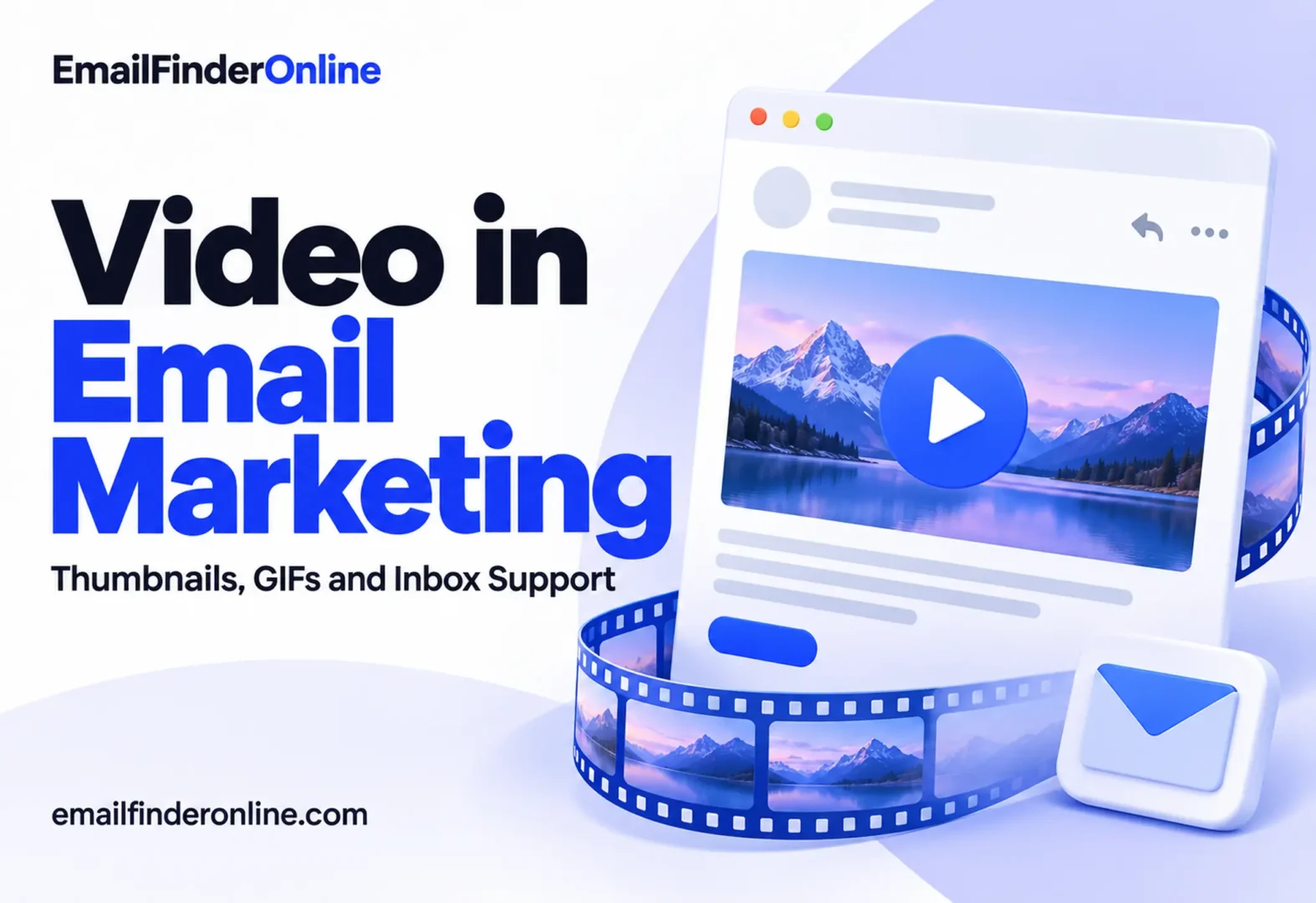
You recorded a short demo and want to send it to your list, but Gmail, Outlook.com and Yahoo won’t play a video file inside a message. The practical way to use video in email marketing is to show a still frame or a short animated GIF with a play button, and link it to a page where the video actually plays. Embedded HTML5 video only works in a small group of inboxes, mainly Apple Mail, so treat it as an extra for tested audiences, never as the default.
This explainer covers which inboxes support video, the three ways to include it, how to build a thumbnail that gets clicked, what affects deliverability, and how to tell whether the video did its job.
Why video in email marketing needs a workaround
Email clients render a limited, older subset of HTML, and many of them remove anything that could run media or scripts. Can I email, the community-maintained support table for email HTML, estimated that about 24.39% of the clients it tracks support the <video> element fully or partly in a reading taken on October 26, 2026. The page also says the feature was last tested on September 16, 2019, so treat the details as a rough guide and test in your own audience’s inboxes.
What the table shows for common clients:
| Email client | What happens to <video> |
|---|---|
| Apple Mail (macOS) | Supported |
| Apple Mail (iOS) | Partial: needs the controls attribute to play, autoplay not supported |
| Gmail (web and apps) | The video tags are replaced, so nothing plays |
| Outlook.com | The element is kept, but a strict Content Security Policy stops playback |
| Yahoo Mail and AOL | Video tags are stripped and the fallback content is shown |
| Outlook for Windows | Not supported in the versions tested, 2007 to 2019 |
| Samsung Email | Partial: needs the controls attribute |
Mailchimp’s help center puts it plainly: “Most email clients can’t display embedded video content, and will strip the code from your email.” That is why email platforms build video features around images and links rather than players.
Three ways to put video in an email
| Method | What the reader sees | Works in | Effort | Use it when |
|---|---|---|---|---|
| Linked thumbnail | A still frame with a play button that opens the video page | Any client that shows images | Low | You want reliable results everywhere |
| Animated GIF preview | A few seconds of looping motion with a play button | Clients that show animated images; others show a still frame | Medium | Motion helps explain the product |
| Embedded HTML5 video with fallback | A playable video in supporting clients, an image elsewhere | Apple Mail and a few others | High | Your list is heavy on Apple Mail and you can test |
A sensible order is to start with a linked thumbnail, add a GIF when motion adds meaning, and keep embedded video for experiments.
Linked thumbnail with a play button
This is the version email builders support out of the box. Mailchimp’s Video content block, for example, adds a play icon on the thumbnail of a YouTube or Vimeo video, and clicking it opens the video in a new browser window. Its video merge tags go a step further and generate an image that looks like a player with a play button and progress bar.
Animated GIF preview
A GIF can show the first few seconds of the video moving inside the email. Keep it short and the file light, because a large GIF slows loading on mobile data. Choose a first frame that makes sense on its own, in case the animation doesn’t run, and lay a play button over the GIF so people know to click. Mailchimp’s help article also describes the manual version of this approach: upload a screenshot of your video player and link it to the video’s URL.
Embedded HTML5 video
The <video> tag can play inline in Apple Mail, but you must include a fallback image and link for every other client. If you try it, add the controls attribute (iOS requires it), keep the file small, host it on a fast server, and send a test to each major inbox your audience uses.
How to build a video thumbnail that gets clicked
- Pick a frame that shows the payoff. A screen with the result of the demo, or a person mid-sentence, tells the reader more than a title card.
- Add a clear play button. Place a round or triangular icon in the center so the image reads as a video at a glance.
- Size it for mobile. Use the full width of a single-column layout and check it on a phone.
- Write a text link under the image, such as “Watch the 2-minute demo”. Some readers have images turned off, and a text link gives them a second way in.
- Add alt text that describes the video, for example “Video: setting up a campaign in under two minutes”.
- Link to a landing page, not just a video site. Your own page can carry the next step, captions and tracking. A bare video link sends people to a page full of other videos.
- Mention the video in the subject line or preheader when it is the main reason to open, for example “See the new dashboard in action”.
Thumbnail checklist
- ☐ Frame shows the outcome or a person, not a blank intro slide
- ☐ Play button is visible against the image
- ☐ Image is sharp at phone width and not too heavy to load
- ☐ Alt text describes the video
- ☐ A text link sits below the image
- ☐ Image and text link go to the same landing page
- ☐ Video length is stated, so people know the time cost
Video, deliverability and spam filters
Video rarely causes deliverability problems by itself, because a linked thumbnail is just an image and a link. Problems come from how the email is built and who receives it.
- Don’t attach video files. Large attachments are blocked or trimmed by many mail systems and look odd in a marketing email. Link to the video instead.
- Keep links visible and honest. Google’s sender guidelines say links in the message body should be visible and easy to understand, and that recipients should know what to expect when they click. A play button that opens a sales page instead of the video breaks that promise.
- Don’t hide content. Google also warns against using HTML and CSS to hide content, which can get messages marked as spam. Some embedded video fallback techniques rely on hiding blocks for certain clients, so test those carefully.
- Balance image and text. An email that is one large image with no text gives filters and readers little to go on. Write a few lines that explain what the video shows.
- Send to people who expect you. A video doesn’t change the basics. Authenticate your domain, keep your list clean and remove addresses that bounce. Our guide to email bounce prevention covers the list hygiene side.
What the landing page needs
The click is only half the job. If the page behind the thumbnail is slow or confusing, the interest you built in the inbox is lost.
- Put the video at the top, visible without scrolling on a phone.
- Match the thumbnail. Use the same frame as the poster image so people know they are in the right place.
- Load fast on mobile data. A video host with adaptive streaming helps here.
- Add one next step under the player, such as booking a call or starting a trial, that matches the email’s goal.
- Keep your tracking tags on the URL so the visit is credited to the campaign.
Where video earns its place in email
Video works when seeing something is faster than reading about it. Common uses:
- Product demos and feature releases: show a new screen in action.
- Onboarding: a short walkthrough of the first setup step.
- Event follow-ups: a recording or a highlights clip for people who missed the session.
- Customer stories: a short interview clip carries more trust than a quote.
- Sales outreach: a personal video recorded for one prospect. In cold email outreach, a linked thumbnail of the prospect’s own website, for example, can show you did the research. Keep it short and only send to contacts you have a real reason to reach. For sourcing those contacts, read our walkthrough on B2B email list building.
How to measure video in email
Opens are a weak signal for video campaigns. Apple’s Mail Privacy Protection, when a user turns it on, prevents senders from seeing whether the message was opened, and Google’s guidelines add that Google itself has no open-rate data and that a weak open figure isn’t proof of a deliverability problem. Measure what happens after the open instead:
| Metric | Where to find it | What it tells you |
|---|---|---|
| Click rate on the thumbnail and text link | Your email platform’s click report | Whether the email made people want to watch |
| Play rate | Your video host or landing page analytics | Whether people who clicked actually pressed play |
| Watch time or completion | Your video host | Whether the video held attention |
| Conversions after the video | Landing page or product analytics, with UTM tags | Whether the video drove the action you wanted |
| Unsubscribes and spam complaints | Your email platform and mailbox provider tools | Whether the content or frequency put people off |
To test the video’s effect, send half your audience a version with the thumbnail and half a version with a text-only description of the same content, then compare click rate and conversions. Keep the subject line the same so you only test one change. Note that Apple Mail Privacy Protection does not cover links, so click data from Apple users still counts.
Accessibility for video emails
- Write alt text for every thumbnail and GIF.
- Avoid GIFs that flash quickly.
- Put captions or a transcript on the landing page.
- Never put essential information only in the video. State the key point and the action in the email text too.
Planning a wider email program? Our plans are listed if you want to see pricing.
FAQ
Can you embed a video directly in an email?
Technically yes, with the HTML5 <video> tag, but only a few clients play it. Apple Mail does, Gmail and Yahoo don’t, and Outlook.com blocks playback, according to Can I email. Always include a fallback image and link.
Which format works for video in email?
There is no single right answer, but a linked thumbnail with a play button works in any inbox that shows images. Add an animated GIF if motion makes the point clearer.
Does adding video hurt deliverability?
A linked image is treated like any other image and link. Risks come from attachments, hidden content, image-only emails and poor list quality, not from the idea of video.
Should I mention video in the subject line?
When the video is the main content, yes. Saying what it shows and how long it runs sets a clear expectation for the reader.
How long should an email video be?
Short enough to match the promise in the email. If the text says “a 2-minute demo”, the video should take about two minutes.
How do I know if people watched?
Use your video host’s play and watch-time reports, and tag the landing page link with UTM parameters so you can match views to the email that drove them.
Making video part of your email plan
Start simple. Record a short clip, export a strong frame, add a play button and a text link, and send it to a segment that cares about the topic. Check click rate and play rate against a text-only version. If the video version wins, build it into your templates, and only then try GIF previews or embedded video for the inboxes that support them.